Other Settings
The Settings window in VirtualCoach gives you access to various customization options for hotkeys, units, overlay behavior, and language preferences. This guide explains each setting in detail so you can tailor the app to your preferences.
Accessing the Settings
Section titled “Accessing the Settings”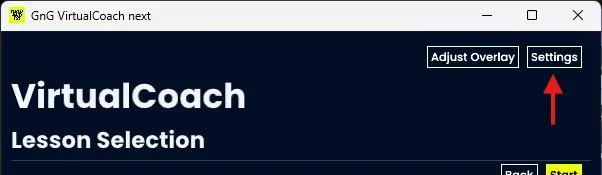
- From the Main Window, click the “Settings” button in the top-right corner.
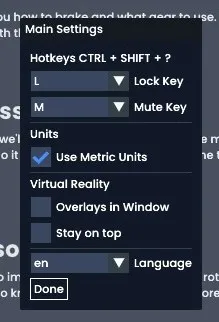
- This opens the Main Settings panel:
Hotkeys
Section titled “Hotkeys”Hotkeys in VirtualCoach let you quickly interact with overlays during your session. Each hotkey is triggered using CTRL + SHIFT + ? and then the key listed here.
| Function | Description |
|---|---|
| Lock Key | Toggle the overlay lock/unlock state |
| Mute Key | Mute or unmute overlay sounds |
| Hide Key | Toggle all overlays on/off |
To change these hotkeys, simply select a different key from the dropdown next to each option.
You can choose the units used for measurements in the overlay:
- Use Metric Units (checked by default): Enables metric system (e.g., km/h, meters).
- Unchecked: Uses imperial units (e.g., mph, feet).
Virtual Reality Options
Section titled “Virtual Reality Options”These settings control how overlays behave, especially when used with VR applications.
| Setting | Description |
|---|---|
| Overlays in Window | Displays overlays inside a resizable window instead of full-screen. |
| Stay on Top | Keeps the overlay window above other applications when “Overlays in Window” is enabled. |
For more information on these options, see the Advanced Settings section on the Adjust Overlay page.
Language
Section titled “Language”Select your preferred language from the dropdown list. Changes will take effect after restarting VirtualCoach.
Saving Changes
Section titled “Saving Changes”To apply any changes you’ve made in the Settings window, click the “Done” button.
Once you’ve finished, you’ll be returned to the Main Window with your new settings in effect.
Use these settings to fine-tune your VirtualCoach experience for maximum usability and comfort during your sessions.