Adjust Overlay
The overlay system in VirtualCoach allows you to customize the information you see during your sessions. This guide explains how to access and configure the overlays effectively.
Accessing the Overlay Settings
Section titled “Accessing the Overlay Settings”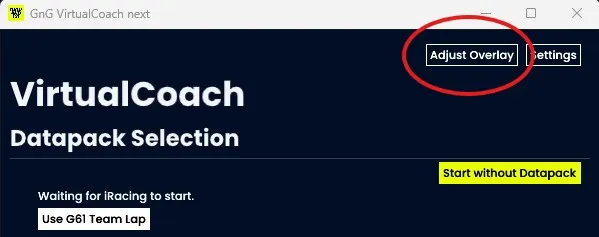
- Launch VirtualCoach.
- On the top-right corner of the main screen, click the “Adjust Overlay” button.
- If overlays are already displayed, you can also open the Overlay Settings by pressing CTRL+SHIFT+L or clicking the VirtualCoach icon in the system tray.
If you modify the positions of overlays don’t forget to click “Save Positions” before going back to the Main Window or locking the Overlays again.
Customizing Overlays
Section titled “Customizing Overlays”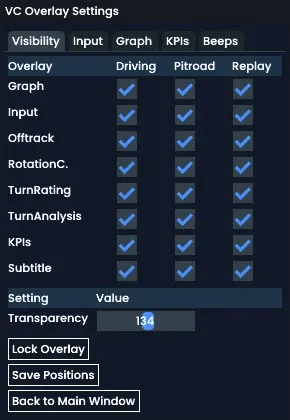
In the Overlay Settings window, you can:
-
Toggle Overlay Visibility
You can toggle the visibility of each overlay for three situations:
| Mode | Description |
|---|---|
| Driving | Overlay is visible while driving on track |
| Pitroad | Overlay is visible while on pitroad (usually pit entry to pit exit) |
| Replay | Overlay is visible in a replay or when rewinding |
-
Adjust Transparency
Modify the transparency value using the slider or input field labeled Transparency.
-
Move Overlays
Simply drag and drop overlays to your preferred screen positions.
-
Save Overlay Positions
Once you’ve arranged overlays to your liking, click “Save Positions”.
Important: If you do not save the positions before clicking “Back to Main Window” or locking the overlay, your position changes will not be retained.
Advanced Settings
Section titled “Advanced Settings”Note: Use these advanced settings only if you have specific requirements that the default full-screen overlay cannot meet.
By default, VirtualCoach overlays operate in full-screen mode and remain on top of other windows. If you prefer to manage overlays in a separate window or need compatibility with VR setups or screen recording tools, you can use the following options:
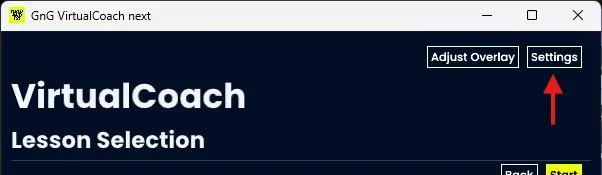
To access these options:
- Click Settings from the Main Window.
- Spot the Virtual Reality section where you’ll find two key options.
Overlays in Window
Section titled “Overlays in Window”Enabling this option removes the full-screen always-on-top behavior. Instead, overlays will appear within a resizable window. This is ideal for:
- VR Headsets using apps like Open Kneeboard
- Streamers capturing overlays individually with tools like OBS
You can even move overlays outside of the window to treat them as standalone windows for more advanced capture setups.
Note: Overlays placed outside of the window will lose features such as click-through, transparency, and the “Stay on Top” behavior.
Stay on Top
Section titled “Stay on Top”This setting applies only to the Overlays in Window mode. When enabled, the overlay window will remain above all other windows and maintain click-through functionality when locked.
Summary
Section titled “Summary”- Use “Adjust Overlay” to manage what information you see and where it’s shown.
- Always click “Save Positions” before returning to the main window or locking overlays.
- Use the Settings menu to control how overlays behave within your workspace.
With these tools, you can tailor your VirtualCoach experience to your exact needs.