Getting Startet
Within this Getting Started Guide, we’ll set the Virtual Coach up from zero, so you can learn a new track with the track guide lesson. To get further infos on what overlay to use when, check the documentation of the overlay you are interested in.
Preconditions: You need a active plus subscription from Grid and Go to access and use the virtual coach. Furthermore a datapack for the car and track combination you want to use needs to be available and iRacing needs to run in windowed mode as the overlay cannot render in front of it otherwise.
Installation
Section titled “Installation”1. Download
Download the latest version from the Virtual Coach Web App. You may need to log in first.
2. Unzip and Install
Extract the downloaded ZIP file. Inside, you’ll find a standalone .exe file — no installation required. You can place this file anywhere you like.
Note: If your antivirus software shows a warning, please ensure that you downloaded the file from our official website. If you’re unsure, feel free to reach out to our team on Discord.
3. Launch the App
Double-click the vc-next-bXX.exe file to start the application.
First you’ll see the login window.
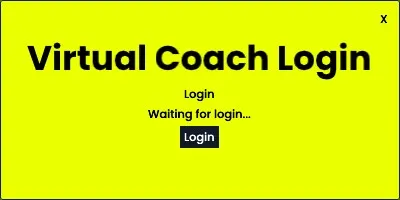
Click the login button and your default browser will open. Make sure to always open only one browser window at a time.
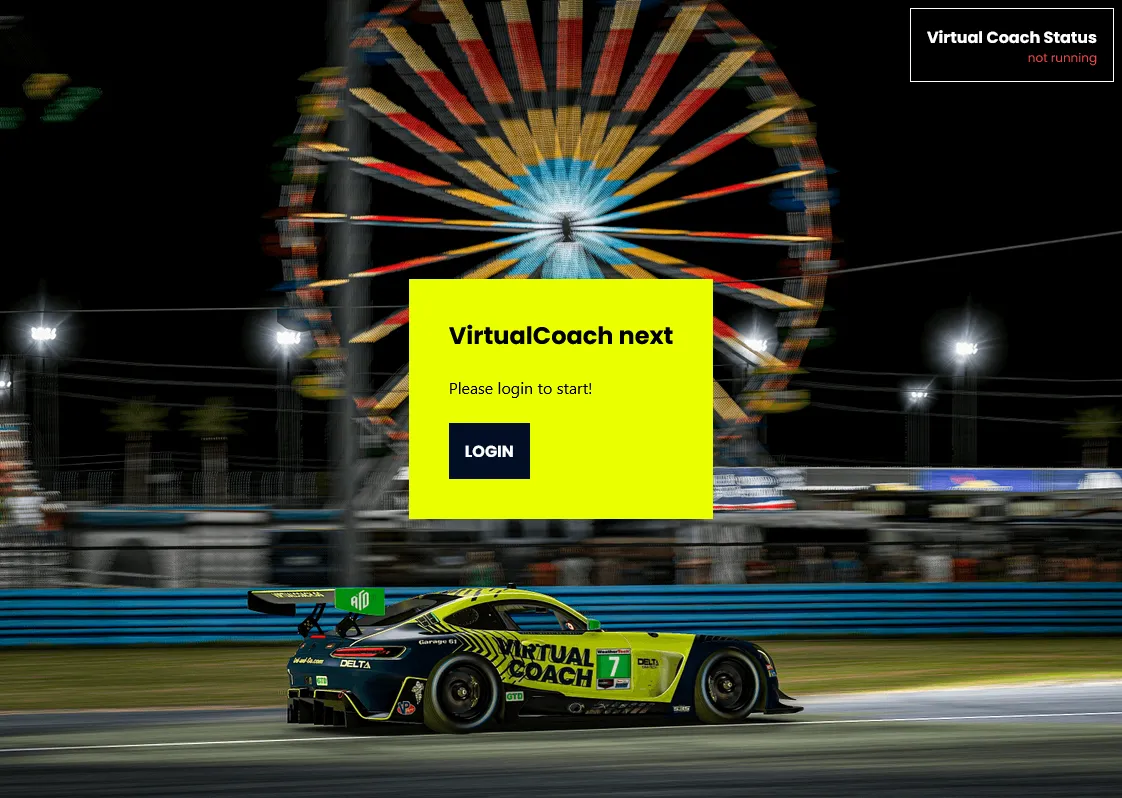
Login on the web app. The status display on the top right corner will change.
| Status | Meaning |
|---|---|
| not running | Virtual Coach application is not started. If it is started and still not detected by the browser, check is the browser, a browser plugin or a firewall is blocking the connection. |
| login | Login in progress. Please wait. |
| running | Virtual Coach is running as expected. You can close the browser window. |
Adjust Overlay
Section titled “Adjust Overlay”We recommend to not use every overlay at the same time. It will just get to disturbing. You should use the Virtual Coach as a toolbox. Use the right tool, for the right task.
1. Open the overlay adjustment
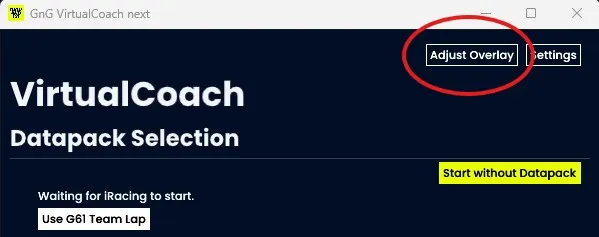 Click the “Adjust Overlay” button. You will see all available overlays including the settings overlay, where you can select which overlays to show:
2. Adjust what to shou where
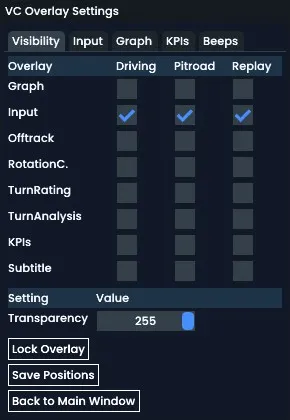 For now only the input overlay it enough. Move the overlay where you want, and click Save Positions before you hit Back to Main Window.
Info: Further adjustments are possible. See the Adjust Overlay Page
Start your first track guide
Section titled “Start your first track guide”You are now ready to start your first practice session. We always recommend to only use the Virutal Coach in dedicated test sessions, where you can fully concentrate on practicing.
1. Start your iRacing session Select a car and track combination of which a datapack is available on Grid and Go. Make sure to start the test session with the conditions as close as possible to the once used for the datapack. While the Virtual Coach is waiting for iRacing it will show the state “Waiting for iRacing to start” or “Waiting for data”. After the session is loaded, it can take up to 10 seconds for the Virtual Coach to load everything what is needed.
2. Select the datapack
As soon as data is loaded the datapack selection is shown. Select the datapack you want to use by clicking the Select beside the datapack.

3. Lesson selection
Next the lesson selection will be shown. You can choose from three different lessons or just hit start without a lesson in case you just want to use the overlays. What you choose and prefer is completely up to you. For the sake of this guide, we click select below the Track Guide. You should hear a voice to show that this lesson is now active. Click start in the top right afterwards.
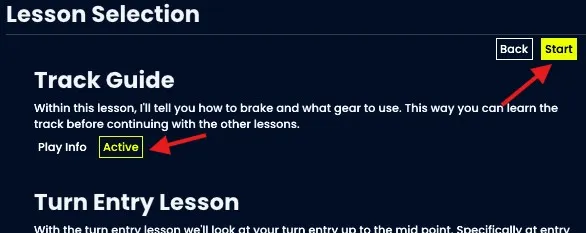
Ready to start You are now ready to drive. Just start driving and as soon as you are out of pits and approaching a corner, the Virtual Coach will tell you how hard to brake, and what gear to use for the next corner.
Next Steps
Section titled “Next Steps”To get the most out of the Virtual Coach familiarize yourself with the overlays and lessons available. Each one has its own usecase and can help you to improve in specific situations. Take your time and get to know your new toolbox!
Note: Using lessons with voice output is not always the best solution. Sometimes driving with full focus and using a specific overlay can be more effective.