Inputs
Input Overlay in VirtualCoach
Section titled “Input Overlay in VirtualCoach”The Input Overlay in VirtualCoach provides a clear and concise view of real-time driving inputs including throttle, brake, clutch, steering, gear, and speed. It’s designed as a reference tool to help compare your inputs directly against those of the coach or reference lap.
Reference
Section titled “Reference”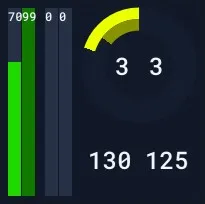 | 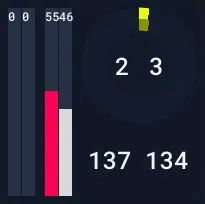 |
|---|
This overlay displays all input values twice — once for the driver (your current input) and once for the coach/reference. Bright colors represent the driver’s data, while darker colors represent the reference data.
Display Breakdown:
Section titled “Display Breakdown:”| Element | Description |
|---|---|
| Bars (Left) | Green for throttle, red for brake, blue for clutch. Bright = driver, dark = coach. |
| Steering Ring | Steering input is shown as a rotating arc. Bright = driver, dark = coach. |
| Gear | Centered numbers: left is driver gear, right is coach gear. |
| Speed | Bottom numbers: left is driver speed, right is coach speed. |
Info: Brake bars will flash if ABS is active.
Usecase
Section titled “Usecase”The Input Overlay is primarily used to quickly verify if the driver is in the correct gear or applying an appropriate amount of steering. It becomes especially valuable during replays or when rewinding a session, allowing frame-by-frame analysis to clearly spot differences in inputs at specific moments in time.
Settings
Section titled “Settings”The Input Overlay settings can be found under Adjust Overlay > Input tab.
| Setting | Description |
|---|---|
| Hide Clutch | Hides the clutch bar from both driver and coach displays. |
| Hide Reference | Hides the coach/reference data entirely. |
These settings allow you to simplify the overlay display if needed. Adjustments can be made during a session — simply unlock the overlay and change settings as desired. All input data is continuously recorded and will be shown even if toggled on mid-session.
Additional Notes
Section titled “Additional Notes”- Position and size of the overlay can be customized. Don’t forget to click Save Positions if you move it.
- Works well in tandem with the Graph Overlay to correlate precise input values with timeline-based graphs.
The Input Overlay is a key reference for comparing technique and execution, making it an essential tool for both learning and fine-tuning driving performance.